
Printer Setup Guide for HP®-Compatible Devices
Free self-help guide by PrintSphere | Not Affiliated with HP Inc.
Clean Driver Reinstall (Windows)
- Settings → Bluetooth & devices → Printers & scanners → select HP → Remove.
- Control Panel → Devices & Printers → Remove device (if still listed).
- Print Management (printui.exe /s /t2) → remove old HP drivers/packages.
- Reboot, then install the latest full-feature HP software package.
Firmware Update & EWS
- Print a Network Config page to find the printer IP.
- Open http://PRINTER_IP in your browser (EWS) → update firmware if available.
- Create a DHCP reservation (static IP) to avoid “Offline” after reboots.
Questions About PrintSphere Driver Updater?
Official HP drivers are always available free from the manufacturer at support.hp.com. PrintSphere Driver Updater checks your PC's drivers against Microsoft Windows Update and installs newer versions in a few clicks, with a 7-day free trial. Have a question? Send us a message.
PrintSphere Driver Updater for HP® Devices
Keeping your HP printer drivers up-to-date helps maintain optimal performance, compatibility, and reliability. The PrintSphere Driver Updater automates this process, saving you time and preventing common printing issues.
Automatic Detection
Scans your system and identifies your exact HP printer model, current driver version, and available updates — no manual searching required.
One-Click Updates
Downloads and installs the correct full-feature HP driver package with a single click. No need to navigate manufacturer websites or worry about compatibility.
Backup & Restore
Creates automatic backups of your current drivers before updating, allowing you to roll back if needed. Your printing setup stays safe.
Scheduled Scans
Set up automatic weekly or monthly scans to ensure your HP printer always has the latest drivers, firmware, and security patches.
Optimize Common Challenges
Resolves driver conflicts, network connectivity challenges, print quality optimization, and compatibility issues with Windows 11/10 updates automatically.
Offline Installer
Download driver packages for offline installation on multiple computers, perfect for IT administrators managing multiple HP printers.
✓ 7-day free trial · ✓ Windows 10 & 11 · ✓ No credit card needed · ✓ 30-day money-back guarantee
Wi-Fi Not Connecting
- Confirm SSID/password; prefer 2.4 GHz networks.
- Try WPS (printer Wi-Fi/WPS → router WPS within 2 minutes).
- Assign a static IP/DHCP reservation to prevent drops.
Network Connectivity
- Restart router → printer → PC; ensure same network.
- Windows: restart Print Spooler; clear stuck jobs.
- Disable "Use Printer Offline" in queue.
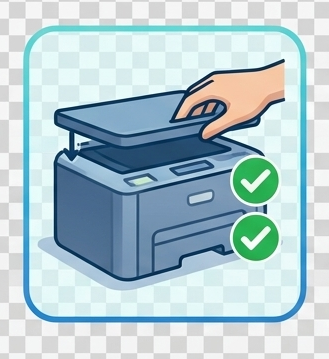
New Setup Checklist
- Unbox, load paper, install ink/toner, power on.
- Install complete full-feature HP drivers.
- Print a test page to validate alignment.
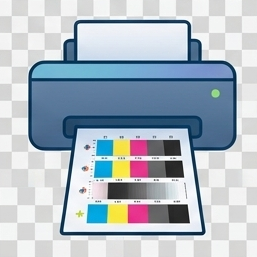
Not Printing
- Try another app/document; re-add the printer.
- Verify Standard TCP/IP port; reinstall drivers.
- Check tray sensors and ink/toner levels.
Advanced HP Printer Maintenance Tips
Regular Cleaning Schedule
- Weekly: Wipe exterior, check paper trays for dust
- Monthly: Clean scanner glass, run printhead cleaning (inkjet)
- Quarterly: Clean rollers, check for firmware updates
- Annually: Deep clean, replace worn parts (rollers, pads)
Optimize Print Settings
- Draft mode: For internal documents to save ink/toner
- Duplex printing: Enable two-sided to save paper
- Color management: Use grayscale for text documents
- Paper type: Match settings to loaded paper for best results
Extend Consumable Life
- Genuine supplies: Use HP-certified ink/toner for reliability
- Storage: Keep cartridges sealed until use, store at room temp
- Print regularly: Weekly prints prevent nozzle clogs
- Shake toner: Gently redistribute powder for even coverage
HP® Device Configuration Flowchart
YES — Maintain Performance
- Run PrintSphere Driver Updater monthly
- Check for firmware updates via EWS
- Clean printheads/rollers quarterly
- Monitor ink/toner levels
- Print test pages after updates
NO — Diagnose & Fix
- Won't power on? Check cable, outlet, power button
- Network issue? Restart router/printer, check network
- Not printing? Clear queue, reinstall driver
- Poor quality? Run cleaning, align printhead
- Paper jam? Clear path, check rollers/sensors
- Still stuck? Contact the manufacturer's official support
Popular HP Model Series
- OfficeJet / OfficeJet Pro — home office all-in-one
- LaserJet / Pro — fast text, low cost per page
- DeskJet — compact entry-level inkjet
- ENVY — photo-oriented, premium design
HP Smart App Setup
- Install HP Smart (Windows/macOS/iOS/Android)
- Sign in and add your printer on the same Wi-Fi
- Enable Print Anywhere and check updates
HP status codes Quick Reference
| Code | Meaning | Resolution |
|---|---|---|
| 59.F0 | Motor/transfer error | Power cycle; reseat transfer roller; service if persists |
| 79 | Service error (firmware/job) | Cancel jobs; update firmware via EWS |
| E1/E2/E3 | Paper/Carriage/Sensor (inkjet) | Clear jams; reseat cartridges; restart |
Where to find your HP printer model number
- Front/top panel: Often printed near the power button (e.g., OfficeJet Pro 9015).
- Rear label: Look near the power inlet/USB port for the model and serial label.
- Inside cartridge door: Open the ink/toner access door; model label is frequently inside.
- Configuration page: Print Network/Config page from the control panel to see model and IP.
- HP Smart App: App > Printer Info shows the exact model and status.
What not to do with your printer
- Don’t power off during firmware updates — it can brick the device.
- Don’t yank jammed paper — follow the jam path; remove gently to avoid sensor damage.
- Don’t use abrasive cleaners — clean with a lint-free cloth; avoid alcohol on rollers.
- Don’t block vents — overheating causes fuser and board failures.
- Don’t mix incompatible ink/toner — always match exact HP model supplies.
- Don’t place heavy objects on the scanner lid — can crack glass or misalign hinges.
- Don’t ignore low-ink/toner warnings — running dry can damage printheads.
HP Printer FAQs
What if Windows can't reach my printer?
Restart router → printer → PC; uncheck “Use Printer Offline”; reinstall driver; set a static IP.
My HP printer won’t connect to Wi-Fi. What now?
Use WPS or manual SSID; prefer 2.4 GHz; move closer to router; set DHCP reservation.
Where is the model number located?
Front/top panel, rear label, inside cartridge door, or on a printed config page; also in HP Smart.
How do I install the correct drivers?
Download the full-feature package for your exact model/OS; remove old drivers first.
Print quality optimization (faded/lines)?
Run head cleaning/alignment (inkjet); shake toner; check drum/fuser; use correct paper profile.
Want a Printable HP Checklist?
Get a one-page setup and configuration PDF via email.
Independence Disclosure
PrintSphere is an independent software company. We are not affiliated with, endorsed by, or sponsored by HP Inc. or any HP subsidiary. HP, OfficeJet, LaserJet, DeskJet, ENVY, and all related trademarks are the property of HP Inc.
This page is a free self-help guide. We do not offer repair, remote-access or phone support services for HP printers. For hardware problems or warranty service, please contact the manufacturer directly.
PrintSphere is not affiliated with HP Inc. All manufacturer warranties remain with the original manufacturer.
Printer Configuration Resources
Additional resources to assist with your printer setup and configuration
Clean Driver Reinstall
Step-by-step guide for clean printer driver installation on Windows & macOS
View ResourcePrinter Connection Problems
Step-by-step checks when Windows 11 can't reach your printer
View ResourceWiFi Setup Configuration
Optimize WiFi connectivity and choose the right network settings
View ResourceKeep All Your Drivers Updated Automatically
PrintSphere Driver Updater updates not just your HP printer drivers, but also graphics cards, sound cards, USB devices, network adapters, and all computer hardware drivers automatically.
Automatic Scanning
Scans all hardware devices and detects outdated drivers instantly
One-Click Updates
Download and install the latest drivers with a single click
Backup & Restore
Automatic backups with easy rollback to previous versions