
Printer Setup Guide for Epson®-Compatible Devices
Free self-help guide by PrintSphere | Not Affiliated with Epson America
Questions About PrintSphere Driver Updater?
Official Epson drivers are always available free from the manufacturer at epson.com/support. PrintSphere Driver Updater checks your PC's drivers against Microsoft Windows Update and installs newer versions in a few clicks, with a 7-day free trial. Have a question? Send us a message.
PrintSphere Driver Updater for Epson® Devices
Epson EcoTank, WorkForce, and Expression printers need specific drivers for optimal ink efficiency and print quality. PrintSphere Driver Updater automatically finds and installs the right drivers for your Epson model.
EcoTank Optimization
Detects your Epson EcoTank model and installs drivers optimized for refillable tank systems, ensuring accurate ink level monitoring and efficient printing.
Complete Package
Installs Epson Scan 2, Smart Panel, Event Manager, and all utilities in one go. No need to download multiple components separately.
Rollback Protection
Backs up current drivers before updating. If a new driver causes issues, restore the previous version with one click.
Automatic Updates
Schedule weekly or monthly scans to keep your Epson printer updated with the latest drivers and firmware releases.
Optimize 0x97 & 0x9A Status
Resolves common Epson status codes including 0x97 hardware status, 0x9A carriage issues, and communication challenges automatically.
Network Deployment
Download Epson driver packages for deployment across multiple workstations, ideal for businesses with several Epson printers.
✓ 7-day free trial · ✓ Windows 10 & 11 · ✓ No credit card needed · ✓ 30-day money-back guarantee

Wi-Fi Not Connecting
- Confirm SSID/password; prefer 2.4 GHz networks.
- Try WPS (printer Wi-Fi/WPS → router WPS within 2 minutes).
- Assign a static IP/DHCP reservation to prevent drops.
Network Connectivity
- Restart router → printer → PC; ensure same network.
- Windows: restart Print Spooler; clear stuck jobs.
- Disable "Use Printer Offline" in queue.
New Setup Checklist
- Unbox, load paper, install ink tanks/cartridges, power on.
- Install complete full-feature Epson drivers.
- Print a test page to validate alignment.
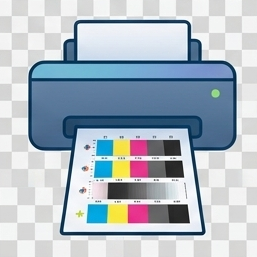
Not Printing
- Try another app/document; re-add the printer.
- Verify Standard TCP/IP port; reinstall drivers.
- Run nozzle check/printhead cleaning.
Epson EcoTank & WorkForce Maintenance
EcoTank Ink Management
- Refill timing: Refill when ink reaches lower line, don't let tanks run dry
- Bottle handling: Shake bottles before refilling, use correct color codes
- Air bubbles: Run power cleaning if air enters ink lines
- Tank cleaning: Clean tanks annually with distilled water
Print Quality Optimization
- Nozzle check: Run weekly nozzle checks to catch clogs early
- Head cleaning: Use standard cleaning first, power cleaning if needed
- Alignment: Run alignment after cartridge/tank changes
- Paper settings: Match media type in driver to loaded paper
Preventive Maintenance
- Regular use: Print at least once per week to prevent clogs
- Firmware: Check Epson website quarterly for updates
- Waste ink: Monitor waste ink pad status, service when full
- Environment: Keep in dust-free area, avoid temperature extremes
Where to find your Epson printer model number
- Front/top panel: Often printed near the power/display panel.
- Rear label: Near the power inlet/USB/Ethernet port.
- Inside ink/tank area: Open the access door; model label may be inside.
- Configuration page: Print a Network/Config page from the control panel to see model and IP.
- Epson Smart Panel: App → Printer Info shows model and status.
What not to do with your printer
- Don’t power off during firmware updates — it can brick the device.
- Don’t yank jammed paper — follow the jam path to avoid sensor damage.
- Don’t use abrasive cleaners — clean with a lint-free cloth; avoid alcohol on rollers.
- Don’t block vents — overheating causes fuser/board failures.
- Don’t use non-compatible inks — always match exact Epson supplies.
- Don’t ignore low-ink warnings — running dry can damage printheads.
Epson Printer FAQs
What if Windows can't reach my printer?
Restart router → printer → PC; uncheck “Use Printer Offline”; reinstall driver; set a static IP.
My Epson printer won’t connect to Wi-Fi. What now?
Use WPS or manual SSID; prefer 2.4 GHz; move closer to router; set DHCP reservation.
Where is the model number located?
Front/top panel, rear label, inside ink/tank area, or on a printed config page; also in Epson Smart Panel.
How do I install the correct drivers?
Download the full-feature package for your exact model/OS; remove old drivers first.
Print quality issues (banding/fade)?
Run nozzle check and head cleaning; align printhead; use the correct paper profile.
Clean Reinstall (Windows)
- Settings → Bluetooth & devices → Printers & scanners → remove Epson.
- Control Panel → Devices & Printers → remove device (if listed).
- Print Management (printui.exe /s /t2) → remove old Epson packages.
- Reboot and install the full Epson driver package.
Firmware & EWS
- Print Network/Config page → note printer IP.
- Open http://PRINTER_IP → check/upgrade firmware.
- Assign Static/DHCP reservation to prevent “Offline”.
Epson status codes Quick Reference
| Code | Meaning | Resolution |
|---|---|---|
| 0x97 | Internal hardware/printhead | Power cycle; unplug USB; clean head contacts; service if persists. |
| 0x9A | Carriage jam/obstruction | Remove jams; check for debris; power cycle. |
| E-01 | General fatal error | Power cycle; ensure no obstructions; service if repeats. |
| 0xEA | Paper jam | Clear jam; reload paper; clean/inspect rollers. |
| 031006 | Wi-Fi connection failed | Re-enter password; move closer to router; use 2.4 GHz; set DHCP reservation. |
| 0xF1 | Scanner/Carriage error | Check carriage path; reseat cables; service if repeats. |
Independence Disclosure
PrintSphere is an independent software company. We are not affiliated with, endorsed by, or sponsored by Seiko Epson Corporation or any Epson subsidiary. Epson, EcoTank, WorkForce, Expression, and all related trademarks are the property of Seiko Epson Corporation.
This page is a free self-help guide. We do not offer repair, remote-access or phone support services for Epson printers. For hardware problems or warranty service, please contact the manufacturer directly.
PrintSphere is not affiliated with Seiko Epson Corporation. All manufacturer warranties remain with the original manufacturer.